

 LinkedIn
A small business does not need another monitoring subscription to find out whether AI answers name it—or name a competitor instead. I used to paste buyer questions into ChatGPT one by one and copy the answers into a sheet. It worked for an afternoon. By the next week, the answers were stale.
This walkthrough gives you a repeatable version: 25 prompts drawn from your own search demand, sent three times each to OpenAI and Perplexity every week. You will get a Google Sheet that shows which prompts mention your brand and which name a competitor instead. You need a Google account, access to Search Console and your Google Ads search terms report, two API keys, and roughly three hours to build it. Put $10 in credit on each API account to start; usage depends on the answers returned.
1. Freeze 25 questions buyers actually ask
Open Search Console: Performance > Queries. Set the date range to the last 90 days, sort by impressions, and export the top 50 queries. Then open Google Ads: Campaigns > Insights and reports > Search terms. Use the same date range and export that report too.
Rewrite 25 terms as full buyer questions. Use this mix:
- 10 category prompts:
best CRM for a 5-person plumbing company - 7 problem prompts:
how do I stop no-show appointments for quotes - 5 comparison prompts:
Acme vs Beta for service scheduling - 3 brand prompts:
does [YourBrand] do weekend installs
Build these from buyer language rather than a brainstorm. Category and problem questions deserve most of the slots because they show where you compete before someone knows your name.
Expected result: a list of 25 questions you can keep unchanged for 90 days. The mistake here is rewriting a question every Monday because its wording embarrasses you. Leave it. That embarrassment is data. If a question genuinely goes stale, you will deactivate it rather than erase its history.
2. Give the Sheet a structure the script can use
Create a Google Sheet named AI monitor. Add five tabs, spelled exactly prompts, runs, mentions, competitors, and citations. Put these headers in row 1:
| Tab | Headers, in order |
|---|---|
prompts | prompt_id, prompt_text, intent, active |
runs | timestamp, prompt_id, model, run_n, answer_text, brand_mentioned, competitor_names, urls_cited |
mentions | prompt_id, model, mention_rate |
competitors | prompt_id, model, competitor, hits |
citations | prompt_id, model, url |
In prompts!A2:A26, enter P01 through P25. Paste the questions into prompts!B2:B26, tag each one in column C as category, problem, comparison, or brand, and select prompts!D2:D26. Click Data > Data validation, set the criteria to Checkbox, and check every box. Leave the other tabs empty below their headers.
Expected result: 25 active rows in prompts and no run data yet. The mistake is pasting questions into column A: the script reads IDs from A and questions from B. The checkbox is your kill switch. Deactivate a stale prompt; never delete its row.
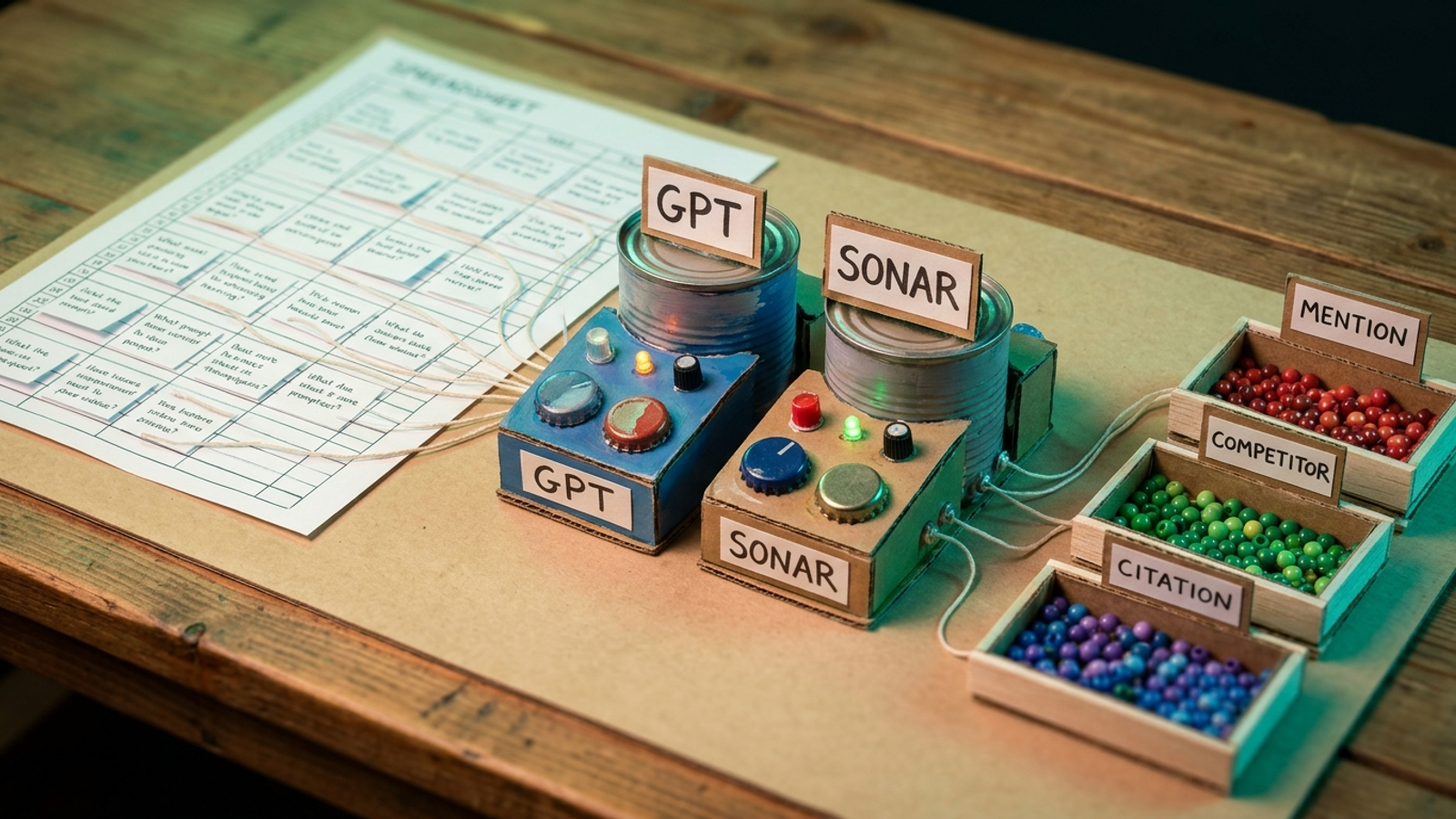
3. Store the API keys outside the Sheet
Create an OpenAI key at platform.openai.com > API Keys > Create new secret key and a Perplexity key at perplexity.ai > Settings > API > Generate. In the Sheet, open Extensions > Apps Script, then Project Settings > Script Properties > Add property. Store the keys under these exact names:
OPENAI_KEYPERPLEXITY_KEY
Set a spending limit or alert in each provider’s billing settings before the first run. This setup makes 25 prompts × 2 models × 3 answers = 150 API calls per completed weekly run. The bill depends on usage, not just the number of prompts.
Expected result: two script properties, with no key in a cell or in the code. The mistake is pasting a key into Code.gs and later sharing the Sheet. Caps and alerts come before the first test, not after a surprisingly busy Monday.
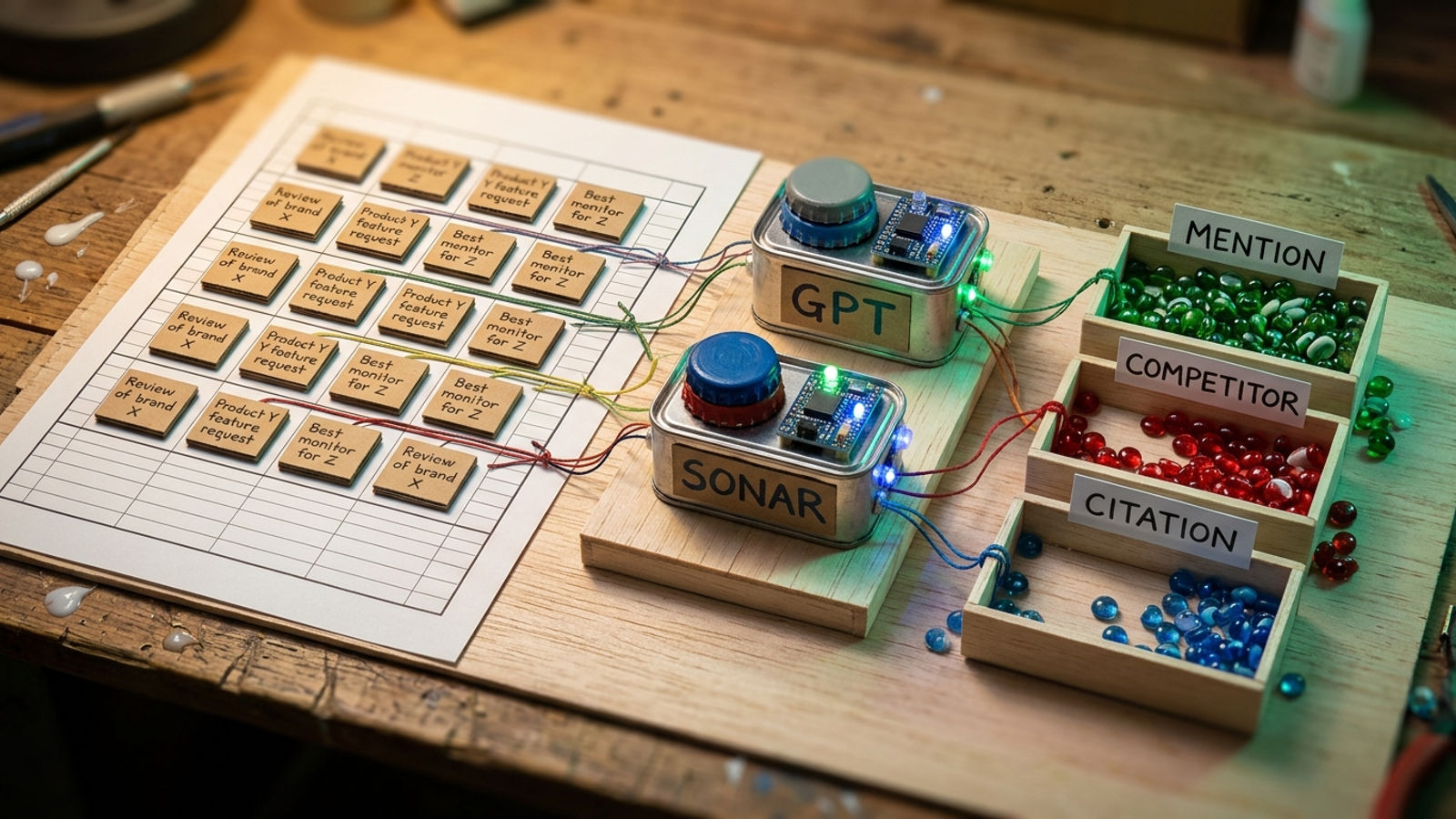
4. Paste the script and set your names
In Extensions > Apps Script, open Code.gs, delete its contents, and paste the complete block below. Edit BRAND_NAMES, COMPETITORS, and DOMAIN at the top. Keep every name lowercase. Include the short name customers use, not only the legal name. Check the two model IDs against the models available to your API accounts before running.
The script requests three answers per active prompt from each API, stores the answers, and checks them for the names you supplied. It records citations returned in the Perplexity response. A failed call stops the run instead of being counted as a FALSE mention; if the run nears Apps Script’s six-minute execution limit, a continuation trigger picks up the remaining calls.
const BRAND_NAMES = ['acme plumbing'];
const COMPETITORS = ['beta drains', 'gamma rooter'];
const DOMAIN = 'acmeplumbing.com';
const MODELS = [
  { id: 'openai', model: 'gpt-4o-mini' },
  { id: 'perplexity', model: 'sonar' }
];

function runMonitorOnce() {
  const props = PropertiesService.getScriptProperties();
  const openaiKey = props.getProperty('OPENAI_KEY');
  const perplexityKey = props.getProperty('PERPLEXITY_KEY');
  if (!openaiKey || !perplexityKey) throw new Error('Missing API key');

  const ss = SpreadsheetApp.getActiveSpreadsheet();
  const promptRows = ss.getSheetByName('prompts').getDataRange().getValues();
  const runs = ss.getSheetByName('runs');
  const citations = ss.getSheetByName('citations');
  const jobs = [];
  for (let i = 1; i < promptRows.length; i++) {
    if (promptRows[i][3] !== true) continue;
    for (const m of MODELS) {
      for (let n = 1; n <= 3; n++) {
        jobs.push({ pid: promptRows[i][0], q: promptRows[i][1], m, n });
      }
    }
  }

  const saved = props.getProperty('MONITOR_PROGRESS');
  const state = saved ? JSON.parse(saved) : {
    next: 0, timestamp: new Date().toISOString()
  };
  if (!saved) props.setProperty('MONITOR_PROGRESS', JSON.stringify(state));
  const started = Date.now();

  for (let i = state.next; i < jobs.length; i++) {
    if (Date.now() - started > 5 * 60 * 1000) {
      scheduleResume();
      return;
    }
    const job = jobs[i];
    const answer = fetchWithRetry(job.m, job.q, openaiKey, perplexityKey);
    const text = answer.text.toLowerCase();
    const named = BRAND_NAMES.some(name => text.includes(name.toLowerCase()));
    const competitors = COMPETITORS.filter(name =>
      text.includes(name.toLowerCase())
    );

    runs.appendRow([
      state.timestamp, job.pid, job.m.id, job.n, answer.text,
      named, competitors.join('; '), answer.urls.join('; ')
    ]);
    for (const url of answer.urls) {
      citations.appendRow([job.pid, job.m.id, url]);
    }
    state.next = i + 1;
    props.setProperty('MONITOR_PROGRESS', JSON.stringify(state));
    Utilities.sleep(1000);
  }
  props.deleteProperty('MONITOR_PROGRESS');
  clearResumeTriggers();
}

function fetchWithRetry(m, q, openaiKey, perplexityKey) {
  const isOpenAI = m.id === 'openai';
  const url = isOpenAI
    ? 'https://api.openai.com/v1/chat/completions'
    : 'https://api.perplexity.ai/chat/completions';
  const key = isOpenAI ? openaiKey : perplexityKey;
  const request = {
    model: m.model,
    messages: [{ role: 'user', content: q }]
  };
  if (!isOpenAI) request.return_citations = true;

  for (let attempt = 1; attempt <= 3; attempt++) {
    try {
      const response = UrlFetchApp.fetch(url, {
        method: 'post',
        contentType: 'application/json',
        headers: { Authorization: 'Bearer ' + key },
        payload: JSON.stringify(request),
        muteHttpExceptions: true
      });
      const status = response.getResponseCode();
      if (status < 200 || status >= 300) {
        throw new Error(m.id + ' returned HTTP ' + status);
      }
      const data = JSON.parse(response.getContentText());
      const text = data.choices[0].message.content;
      if (!text) throw new Error(m.id + ' returned an empty answer');
      return {
        text,
        urls: isOpenAI ? [] : (data.citations || [])
      };
    } catch (error) {
      if (attempt === 3) throw error;
      Utilities.sleep(2000 * attempt);
    }
  }
}

function scheduleResume() {
  const exists = ScriptApp.getProjectTriggers().some(trigger =>
    trigger.getHandlerFunction() === 'resumeMonitor'
  );
  if (!exists) {
    ScriptApp.newTrigger('resumeMonitor').timeBased().after(60000).create();
  }
}

function resumeMonitor() {
  clearResumeTriggers();
  runMonitorOnce();
}

function clearResumeTriggers() {
  for (const trigger of ScriptApp.getProjectTriggers()) {
    if (trigger.getHandlerFunction() === 'resumeMonitor') {
      ScriptApp.deleteTrigger(trigger);
    }
  }
}
Expected result: Run > runMonitorOnce eventually adds 150 rows to runs if all 25 prompts are active. You may see fewer at first while a continuation is pending. If an API call fails after three attempts, inspect the error in Apps Script’s Executions view and rerun runMonitorOnce after fixing it; the saved progress starts at the failed call.
The mistake is treating a blank answer as a non-mention. That turns an outage into a visibility problem. There is one narrow edge case worth knowing: if Apps Script stops after writing a row but before saving progress, a retry can duplicate that row. Check for duplicate timestamp, prompt_id, model, and run_n values before using the report.
I used to tell clients one answer was enough. I was wrong. One answer is an anecdote. Three answers give you a mention rate, though not a verdict on what every customer sees.
5. Schedule Monday, then test it by hand
In Apps Script, click Triggers (the clock icon) > + Add Trigger. Choose runMonitorOnce, Time-driven, Week timer, Every Monday, and 6am to 7am. Save and approve the permissions. Enable failure notifications to your email.
Now use Run > runMonitorOnce for the first test. Open runs and check that answer_text contains answers, brand_mentioned contains TRUE or FALSE, and each completed prompt has three rows per model under the same timestamp. Check citations for URLs returned by Perplexity; an empty cell for OpenAI is expected because this script does not collect citations from that response.
Expected result: one weekly trigger, plus a populated first run. The mistake is scheduling an untested script and discovering a permissions or key error the following Monday. If the first run is still continuing, let it finish before judging the row count.
6. Turn the rows into a loss list
In mentions, enter one row for every prompt_id and model pair: P01 with openai, P01 with perplexity, then the same pair for P02 through P25. In mentions!C2, paste this formula and fill it down:
=IFERROR(COUNTIFS(runs!B:B,A2,runs!C:C,B2,runs!F:F,TRUE)/COUNTIFS(runs!B:B,A2,runs!C:C,B2),"")
Format column C as a percentage. This calculates brand mentions divided by completed answers for each prompt and model. Once the first complete run is in, a brand named in two of three answers shows 67%. As weekly runs accumulate, the formula uses all completed answers for that pair. Blank means there are none yet; it does not mean 0%.
Select the filled mentions table and use Insert > Chart to chart mention rate by prompt. Keep the two models identifiable rather than combining them into an invented single ranking. Repeated mention rate beats a single-run position.
In competitors, enter the prompt IDs and model names you want to inspect, and put a competitor name from your script’s list in column C. In competitors!D2, paste this formula and fill it down:
=COUNTIFS(runs!B:B,A2,runs!C:C,B2,runs!G:G,"*"&C2&"*")
That counts completed answers containing that competitor name. It is not a percentage, and it uses the same simple text matching as the script. Sort mentions from lowest to highest, then check those prompt-and-model pairs against competitors. A 0% brand rate next to repeated competitor hits is the list to work. Search Console gives you query demand; it does not tell you whether your entity appeared inside an AI answer.
Expected result: a chart of brand mention rates and a competitor hit count for the prompts you inspect. The mistake is seeing one lost answer and rewriting a page by lunch. Wait for two weekly runs before treating a pattern as a pattern. If the loss persists, use the buyer prompts you lose to decide what content needs work. Fix the alias list before concluding your brand is invisible. A shorter customer name that the script does not recognise can make a real mention look like a loss.
Verify the monitor—and know where DIY stops
After a completed Monday run, filter runs to its timestamp. With all prompts active, you should have 150 rows: three answers per prompt per model. Confirm that the answers are populated, the mentions percentages calculate, and the lowest-rate prompts can be matched to competitor hits. If the counts are short, check Apps Script Executions and any pending continuation trigger before editing the report.
Then make the first change that matters: pick the three persistent 0% prompts with the highest impressions in Search Console and inspect the pages behind them. The sheet identifies a loss; it does not rewrite a service page, publish a comparison, or earn a citation for you. Work one prompt at a time and watch the next two cycles.
Keep the measurement boundary in view. API answers are a repeatable proxy, not the consumer apps. App answers can differ because of memory, personalisation, location, and tools; a measurement guide found limited source overlap between API and app results. This script also checks names with simple text matching. It does not judge whether a mention is a recommendation, and its citations tab records the Perplexity URLs returned by the API, not every link a reader might see.
Google AI Overviews stay outside this build too. There is no public API for querying them through this script, so do not label the chart ‘all AI search’. It measures these two API workflows. If the loss list grows faster than you can act on it, the DIY version has reached its limit. Compare done-with-you and done-for-you execution before paying someone to do more monitoring. Keep the 25 prompts stable and the Monday trigger on. The first thing to change is the page behind a losing buyer question, not the colour of the chart.